The Site Administration Interface
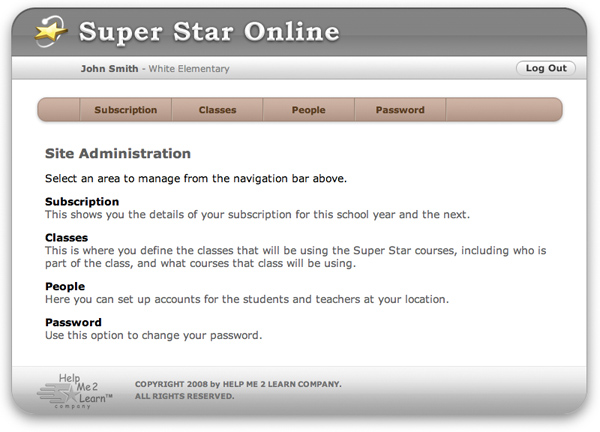
Once you log in, you will see the Site Administration interface. This is your "control panel" for setting up and making changes to your site. From here, you can look at the status of your subscriptions, manage classes, manage people, and change your password.
Subscription
Click on the Subscription button to view information about your subscriptions. This will show you how many active users you have out of your maximum. It will also show you the courses to which your site has subscribed, and how many classes are using each one. You can scroll down to see other courses that are available.

Classes
Click the Classes button to see a list of classes for your school. From here, you can add new classes, edit the settings for existing classes, or remove classes.
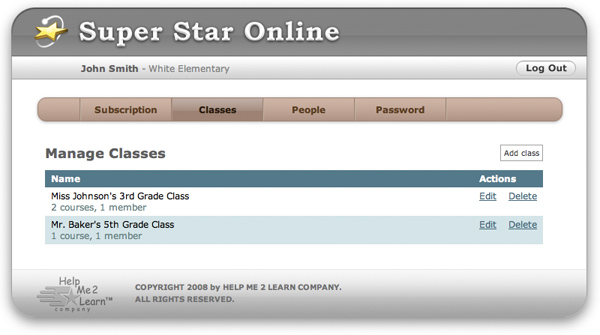
When you add or edit a class, you can assign people to it. The class editor shows lists of students and teachers that have been set up at your site. Simply check the box next to each student and/or teacher that is part of that class.
The class editor also shows the courses to which your site has subscribed. Check the box next to each course that should be made available to the members of the class.
Note: You can import classes at the same time as you import people. See the section on Importing People for more information.
People
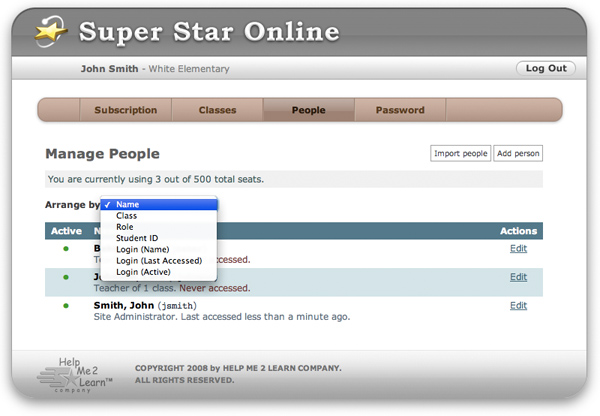
Click on the People button to see a list of the people on your site.
You can arrange the list of people by name, by class, by role, by student ID, by login name, by last access time, or by the person's active/inactive setting. See the Managing People section for more information about each of these.
When you add or edit a person, you can choose the classes to which that person belongs. Simply check the box next to each class.
The "Import people" button allows you to load a CSV file of student and teacher data rather than entering it using the web interface. See the section on Importing People for more information.
Password
Click on the Password button to change your password.